Synopsis:
The “Download Users” in Gsuite portal button doesn’t include the list of Aliases for displayed users in Gsuite portal under Directory / Users
Fix:
The best way, so far we know of, is to use Google sheet Extensions App scripts along with its Admin SDK Directory API. Here are the steps to follow:
1. Open a new Google Sheet.
2. Go to Extensions > Apps Script.
3. In the left panel, click the + next to Services, select Admin Directory API, and click Add
4. Paste the following script and click Run
function getEmailsAndAliases() {
  var sheet = SpreadsheetApp.getActiveSpreadsheet().getActiveSheet();
  sheet.clear();
  // Set up headers
  sheet.appendRow(["User Name", "Primary Email", "Alternate Emails (Aliases)"]);

  var pageToken;
  do {
    // API Call to pull 500 users at a time
    var userList = AdminDirectory.Users.list({
      customer: 'my_customer',
      maxResults: 500,
      pageToken: pageToken
    });

    if (userList.users) {
      for (var i = 0; i < userList.users.length; i++) {
        var user = userList.users[i];
        // Check if aliases exist, join them with a comma if they do
        var aliases = user.aliases ? user.aliases.join(", ") : "None";
        sheet.appendRow([user.name.fullName, user.primaryEmail, aliases]);
      }
    }
    pageToken = userList.nextPageToken;
  } while (pageToken);
}
5. Before clicking run, look at the left sidebar of the script editor and click the + icon next to Services.
6. Scroll down, select Admin SDK API (or Admin Directory API), and click Add.
7. Click the Run button at the top.
Figure 1:
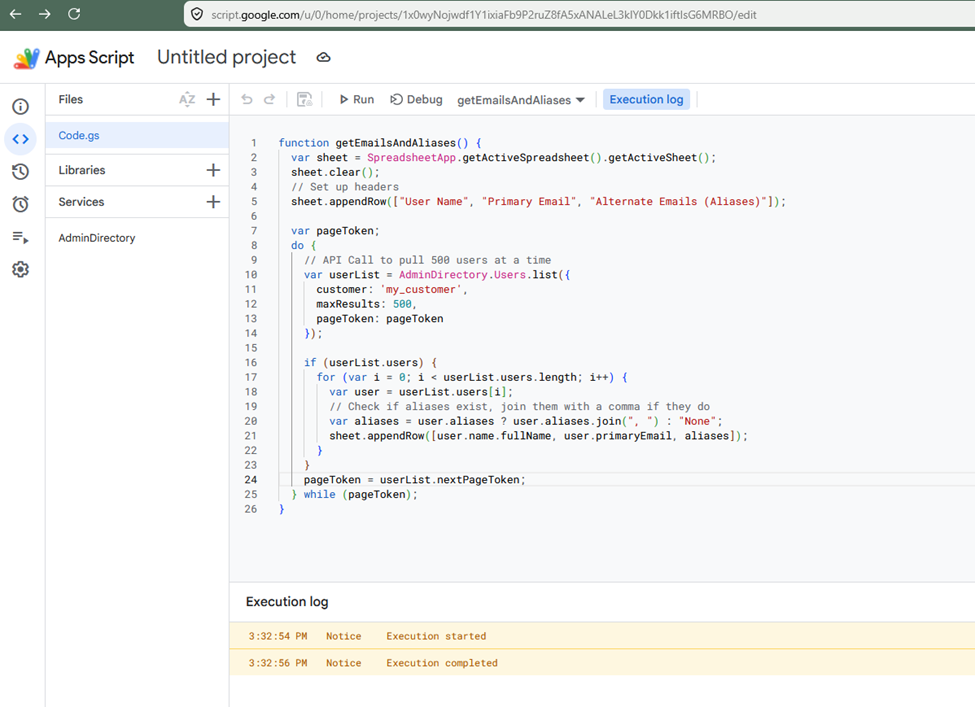
When the Execution log says "Execution Completed" it means the script successfully gathered all the data from your Google Workspace directory. <Figure 1>
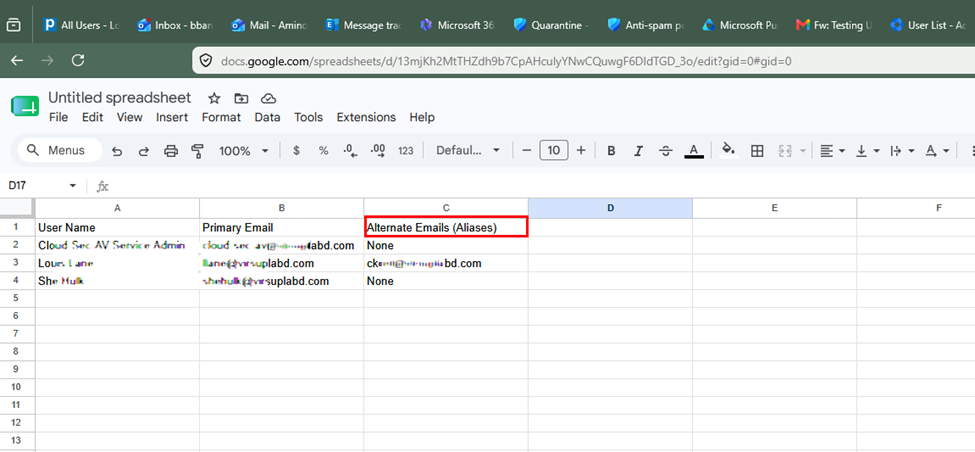
Because of the way the script was written, the results aren't displayed inside that small logs panel—they are written directly onto the Google Sheet that the script is attached to.
So to see the results go back to the browser tab containing the original Google Sheet where you clicked Extensions > Apps Script. <Figure 2>
figure 2: