Scenario:
Proofpoint Essentials supports integration with Identity Providers for authentication adhering to Security Assertion Markup Language (SAML) standards. Multiple identity providers for an organization are fully supported.
Proofpoint Essentials supports single sign-on (SSO) via Security Assertion Markup Language. When working with an external IdP, it can be set up as your identity provider (IdP) for SSO to Proofpoint Admin Console.
- Under Account Management, click Identity Providers.
- At the top right-hand corner, click ADD IDENTITY PROVIDER.
- In the New Identity Provider panel that opens, enter a meaningful Identity Provider name and description. Note that this name will be shown on the Identity Provider button on the main login screen.
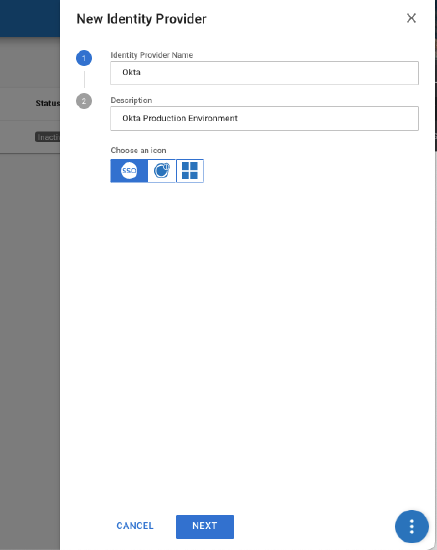

- Select the appropriate icon for the Identity Provider button, then click Next.
- You see a series of set of fields, one for each of the elements needed to configure the SAML assertions necessary for Single Sign-On to be used in your Identity Provider portal.
The following fields are available:
| Field | Description |
Entity ID | AKA "Assertion Consumer Service" (ACS), "Identifier" or "Entity ID". |
Login URL | URL used to provide service provider-initiated single sign-on. |
Logout URL | URL used to send the SAML logout response to the application.. |
X.509 Certificate | Certificate used to sign SAML tokens issued to your Proofpoint Essentials implementation. |
- Click (copy) in order to copy each field's value to a temporary clipboard. You will need this information for configuring your Identity Provider in a future step.
 (copy) in order to copy each field's value to a temporary clipboard. You will need this information for configuring your Identity Provider in a future step.
If you have configured your Identity Provider and have the necessary information captured, proceed to the next step. If you have not, you must first configure your Identify Provider. Refer to the Identity Provider guides below.
- Paste the necessary SAML assertions for Single Sign-On configuration to be used for Proofpoint Essentials.
- Identity Provider Single Sign-on URL
- Identity Provider Login URL
- Identify Provider Logout URL
- Identity Provider x 509 Certificate
- Click toggle (enable) on the Enable Single Sign-On setting.
- This turns on the Identity Provider. When enabled, the "Identity Provider Sign in" button is shown on the Proofpoint Essentials login screen.
- Click Save and Close.
 toggle (enable) on the Enable Single Sign-On setting.