Synopsis
A customer needs messages delivered to an internal mailbox or distribution list (DL) member to also be sent to an external address, including an address in another Microsoft 365 tenant.
Cause
Automatic forwarding can encounter authentication and deliverability issues. SPF may fail when the forwarding server sends on behalf of the original sender. DKIM can also fail if signed headers or message content are modified, potentially affecting DMARC.
A mail flow rule provides centralized control over external delivery, but successful authentication still depends on the message path.
Solution
Use an Exchange Online Mail Flow Rule (Transport Rule) to add the external recipient while preserving delivery to the internal recipient.
Open Exchange Admin Center > Mail flow > Rules.
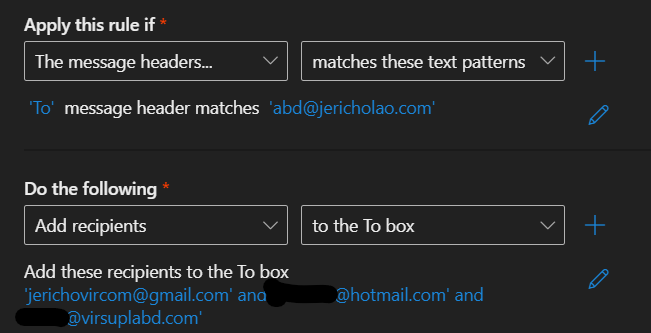
Create a rule with the following configuration:
Setting Configuration Rule name Copy Messages to External Recipient Apply this rule if The recipient > address includes any of these words Text value abd@jericholao.comDo the following Add recipients > to the Bcc box External recipient jerichovircom@gmail.comabd@jericholao.comis the internal mailbox or DL member whose messages should be copied.jerichovircom@gmail.comis the external destination.
Save and enable the rule.
Send test messages and confirm delivery to both recipients using Message trace.
Scope: This condition applies to messages delivered to abd@jericholao.com, including direct messages and messages received through DL membership. It is not limited to messages from a particular DL.