SCENARIO:
If you are looking for an all in one solution to archive your internal emails and external emails you would have to purhcase a 3rd party software which requires addition cost and license.
SOLUTION:
365 Total Protection offers such a feature with simple rule creations that allows administrators to archive internal and external data. Follow to sets below to configure archiving with O365.
1- Login to Total Protection at CP.PROOFPOINT.COM and in the customer scope selection make sure you are targeting your Organization Name.

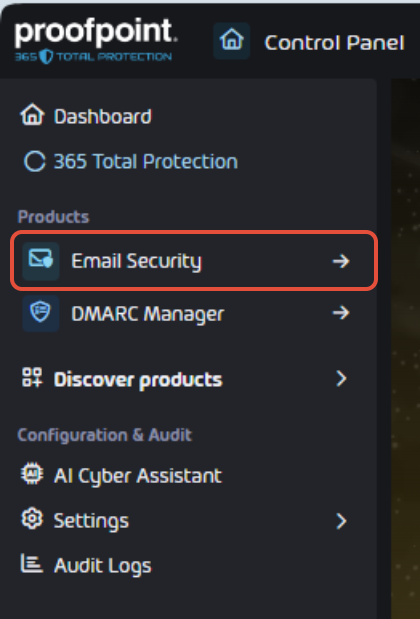
2- On the left hand panel, select EMAIL SECURITY.
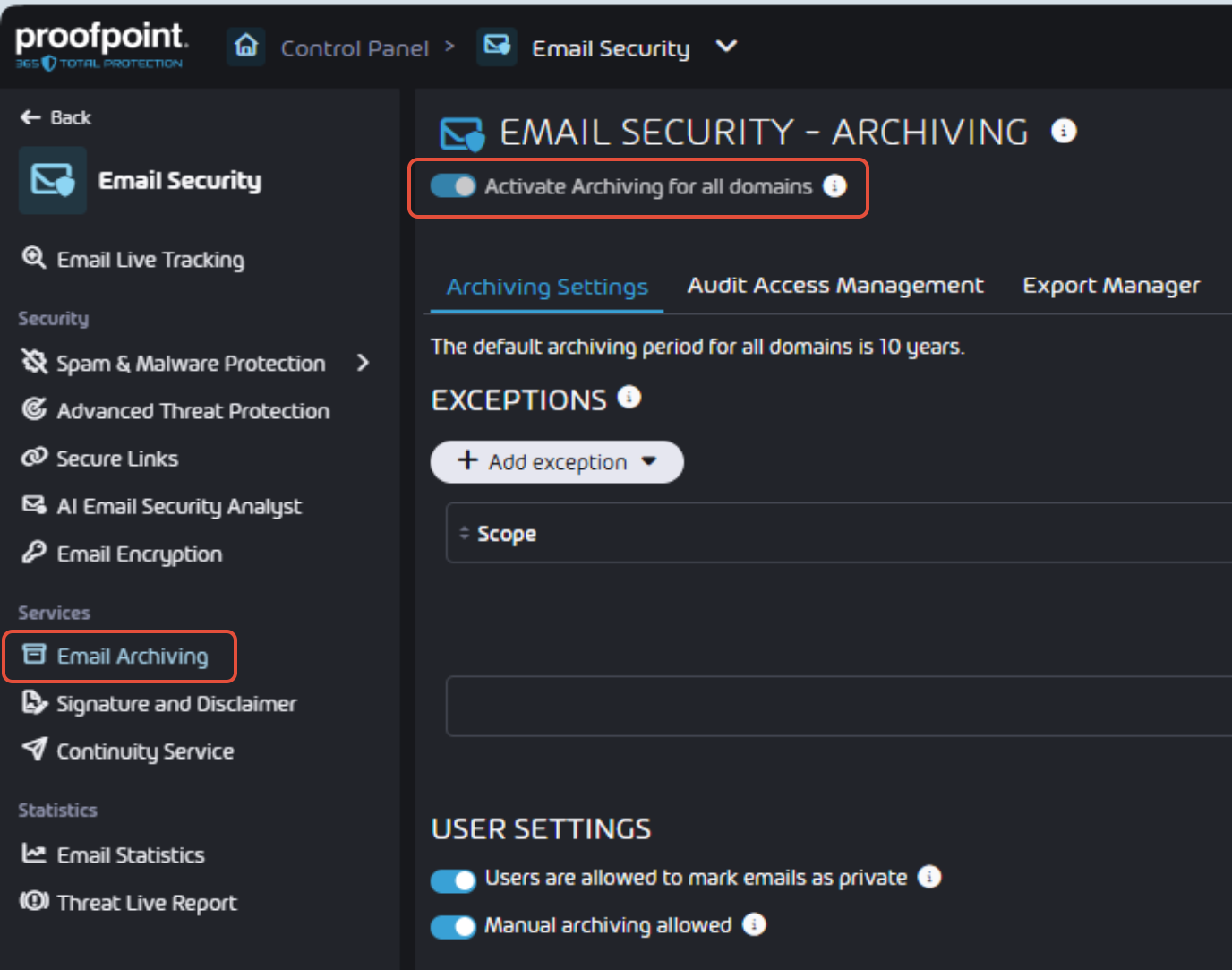
3- Next select from the left hand panel EMAIL ARCHIVING and toggle on the option ACTIVATE ARCHIVING FOR ALL DOMAINS. This option will automatically configure all inbound and outbound emails archiving in 365 Total Protection.
4- Next will need to create an archive connector in O365, so login to HTTPS://ADMIN.EXCHANGE.MICROSOFT.COM with your customers credentials.
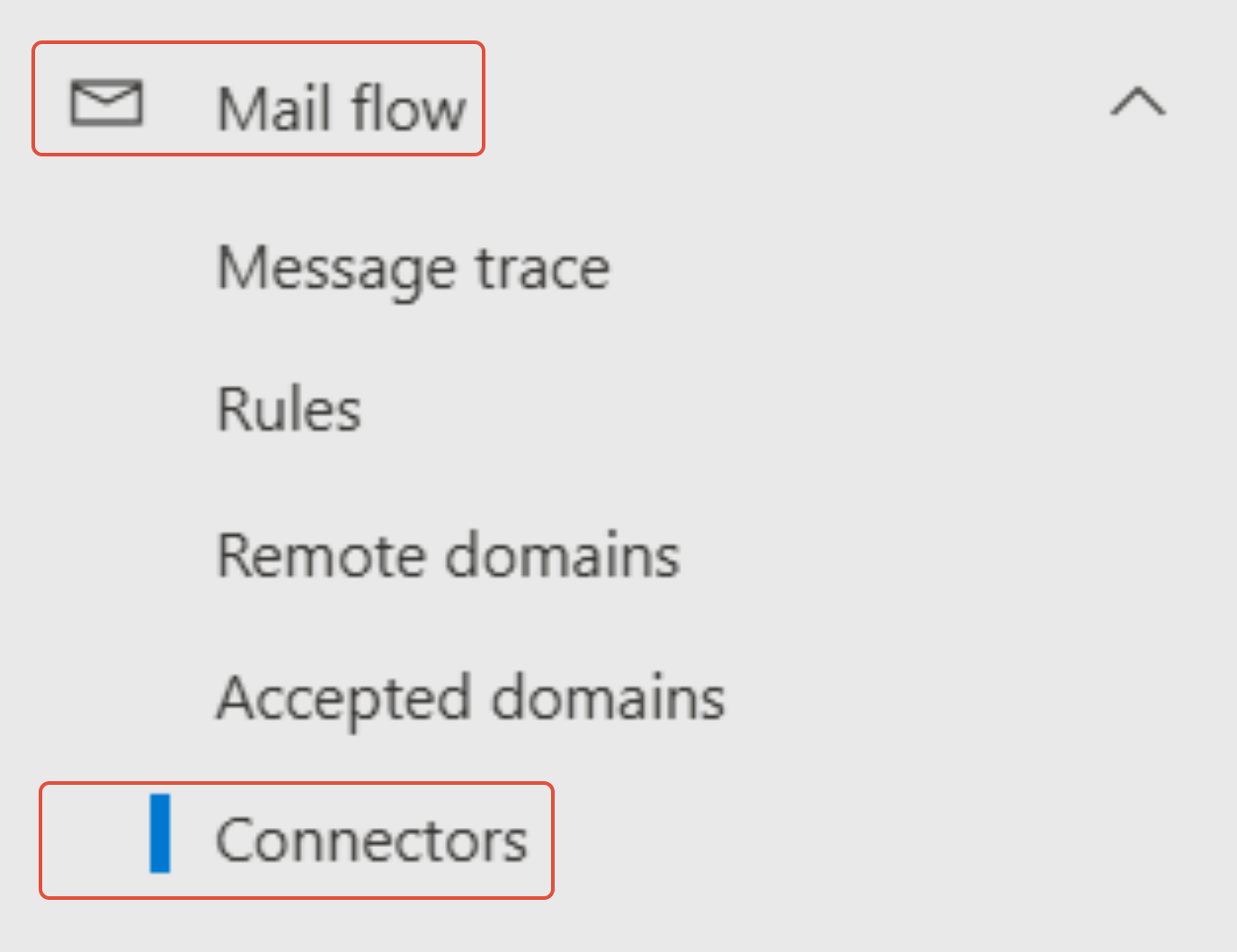
5- On the left hand panel select MAIL FLOW - CONNECTORS and click on ADD A CONNECTOR.
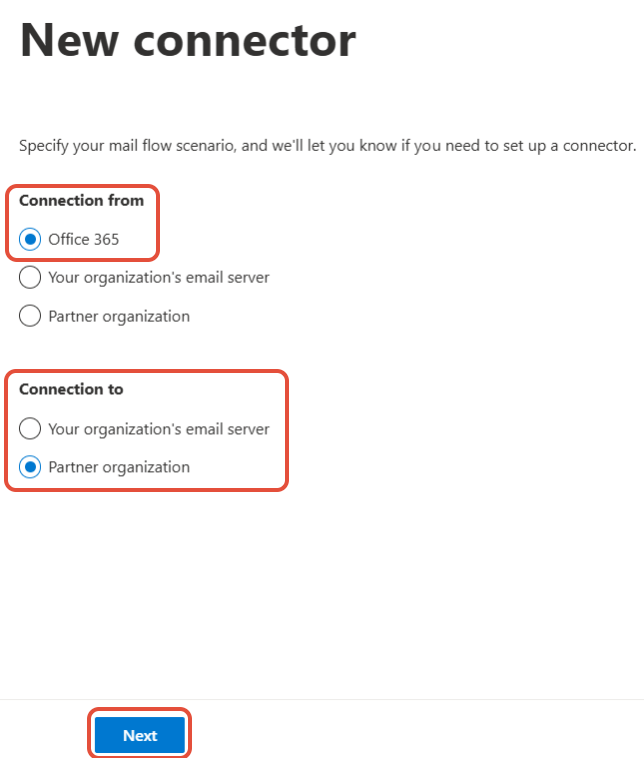
6- Under CONNECTION FROM select OFFICE 365 and select NEXT, and in the CONNECT TO section select PARTNER ORGANIZATION and click NEXT.
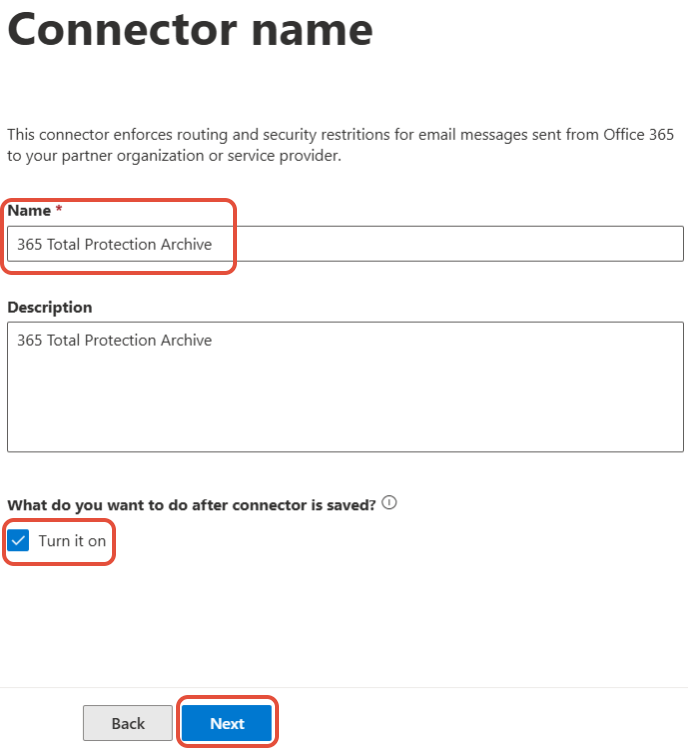
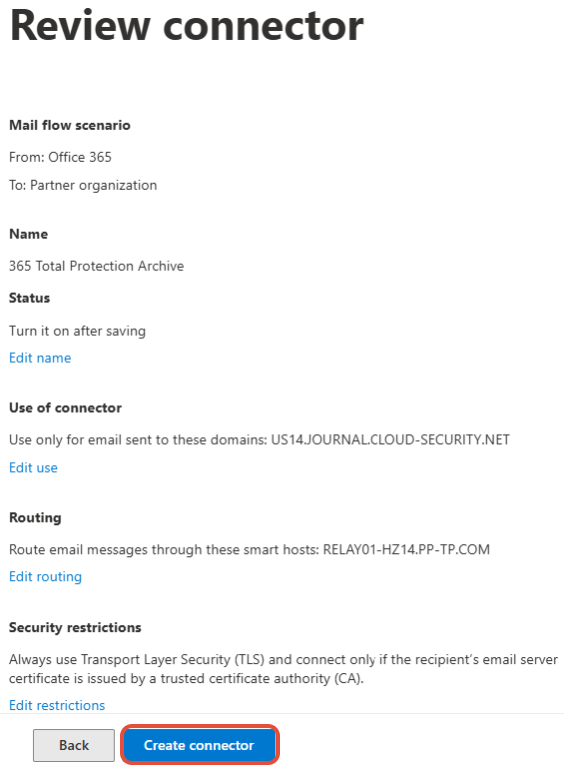
7- Enter a name for the connector and enable the option TURN IT ON and click NEXT.
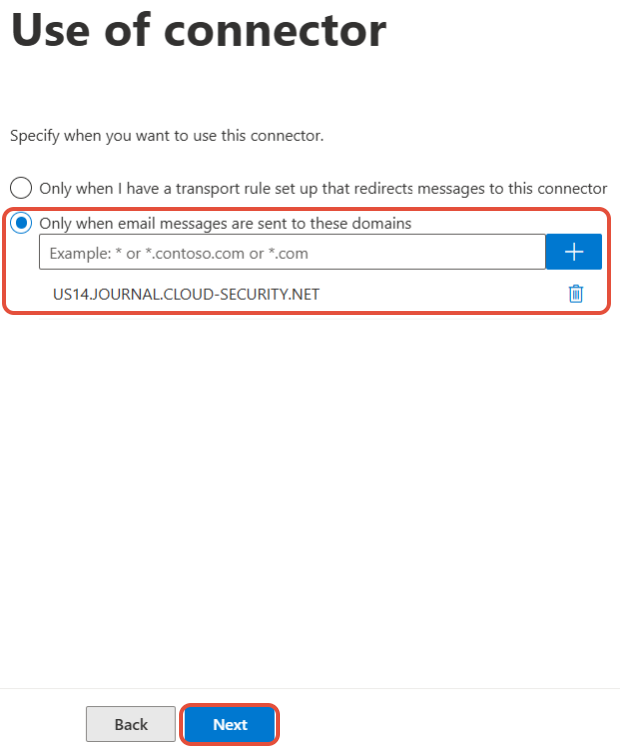
8- In the USE A CONNECTOR page select the option ONLY WHEN EMAIL MESSAGES ARE SENT TO THESE DOMAINS and enter US14.JOUNRNAL.CLOUD-SECURITY.NET. Then click the PLUS SIGN and click NEXT.
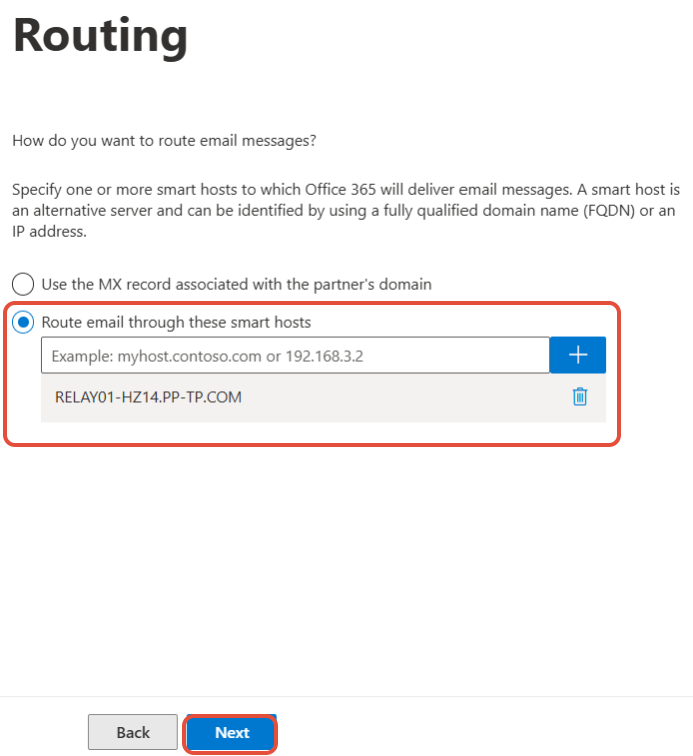
9- Next select the option ROUTE EMAIL THROUGH THESE SMART HOSTS and enter the value RELAY01-HZ14.PP-TP.COM and click the PLUS SIGN and click NEXT.
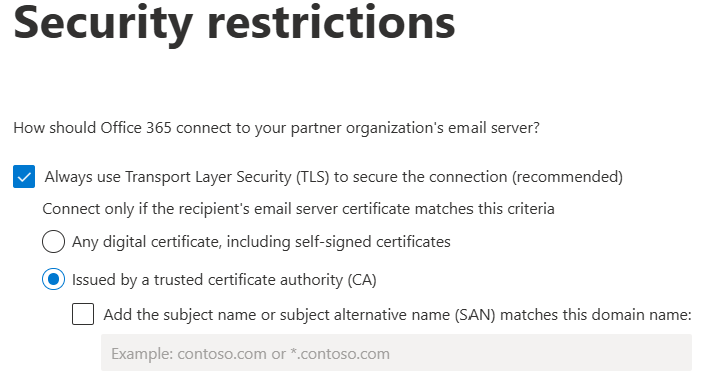
10- On the SECURITY RESTRICTIONS page, keep the default settings and click NEXT.
11- To test the connector add the following entry DOMAIN.COM_EEP@US14.JOURNAL.CLOUD-SECURITY.NET where the DOMAIN.COM would be replaced with your customers domain name. Then click the PLUS SIGN and click the VALIDATE button.
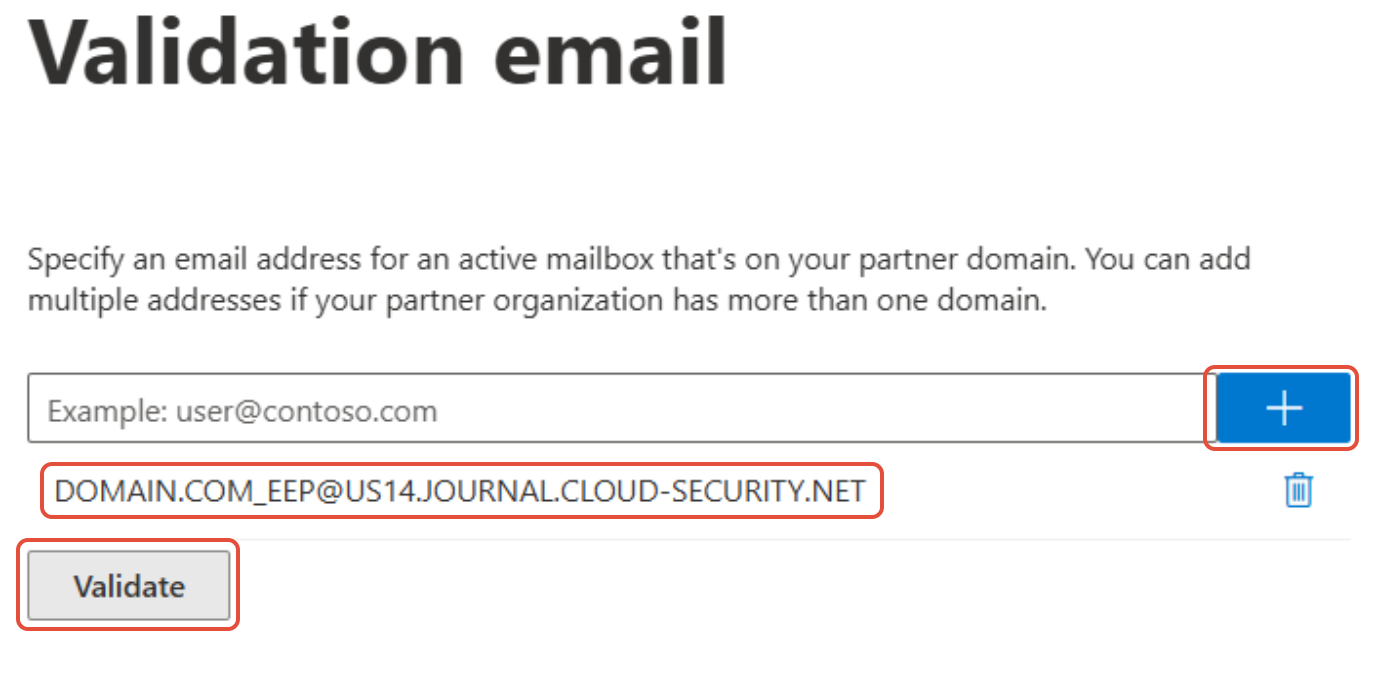
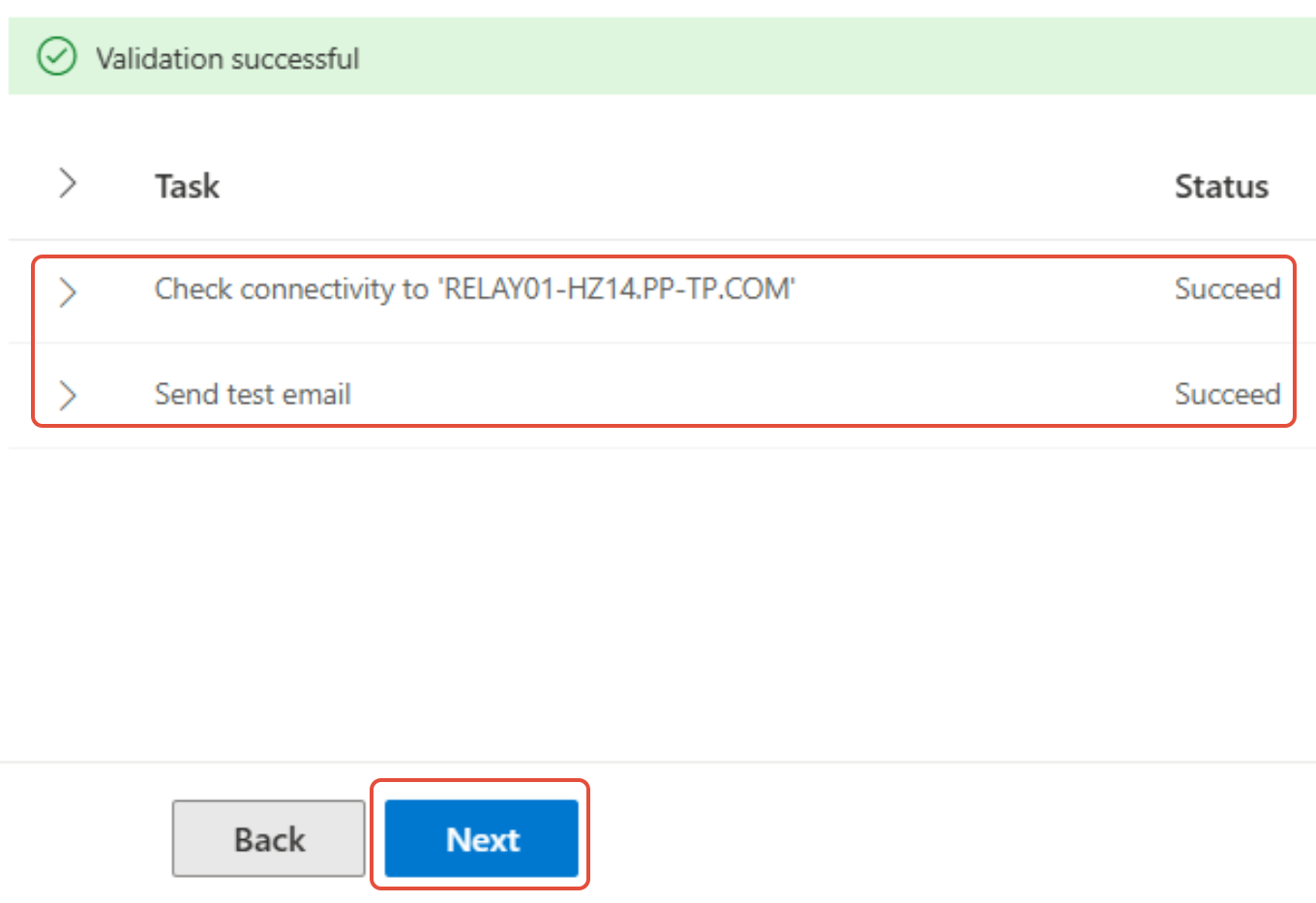
12- Once you are the connectivity and send test emails is successful then click NEXT.
13- Review your final configuration settings and click CREATE CONNECTOR then click DONE.
NEXT WE WILL HAVE TO CREATE AN UNDELIVERABLE MAILBOX.
14- log into ADMIN.CLOUD.MICROSOFT.COM and login with your customers O365 Global Administrator account.
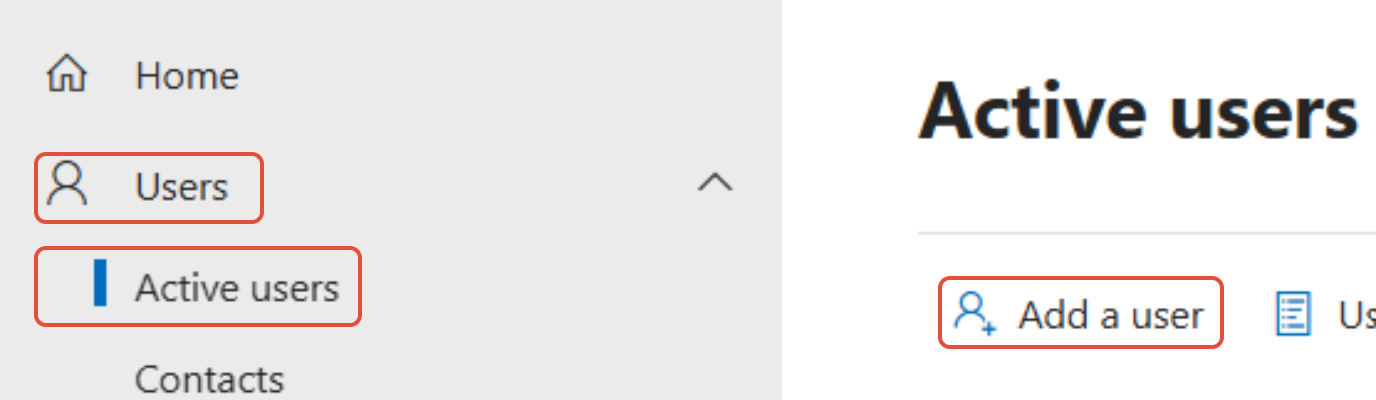
15- On the left hand panel, select USERS - ACTIVE USERS and click ADD A USER.
16- This part is creating an undeliverable mailbox for journal rule entries. You will need to fill out the information and would suggest providing the mailbox name with recognizable non-deliverable archive name. You will are also required to setup a password, then click NEXT.
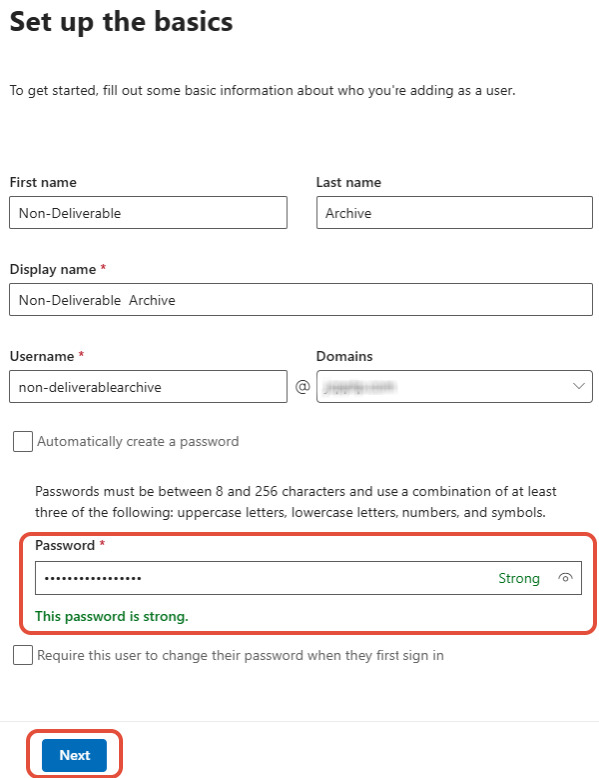
17- You can then create the mailbox and select CREATE USER WITHOUT PRODUCT LICENSE (NOT RECOMMEND) and click NEXT.
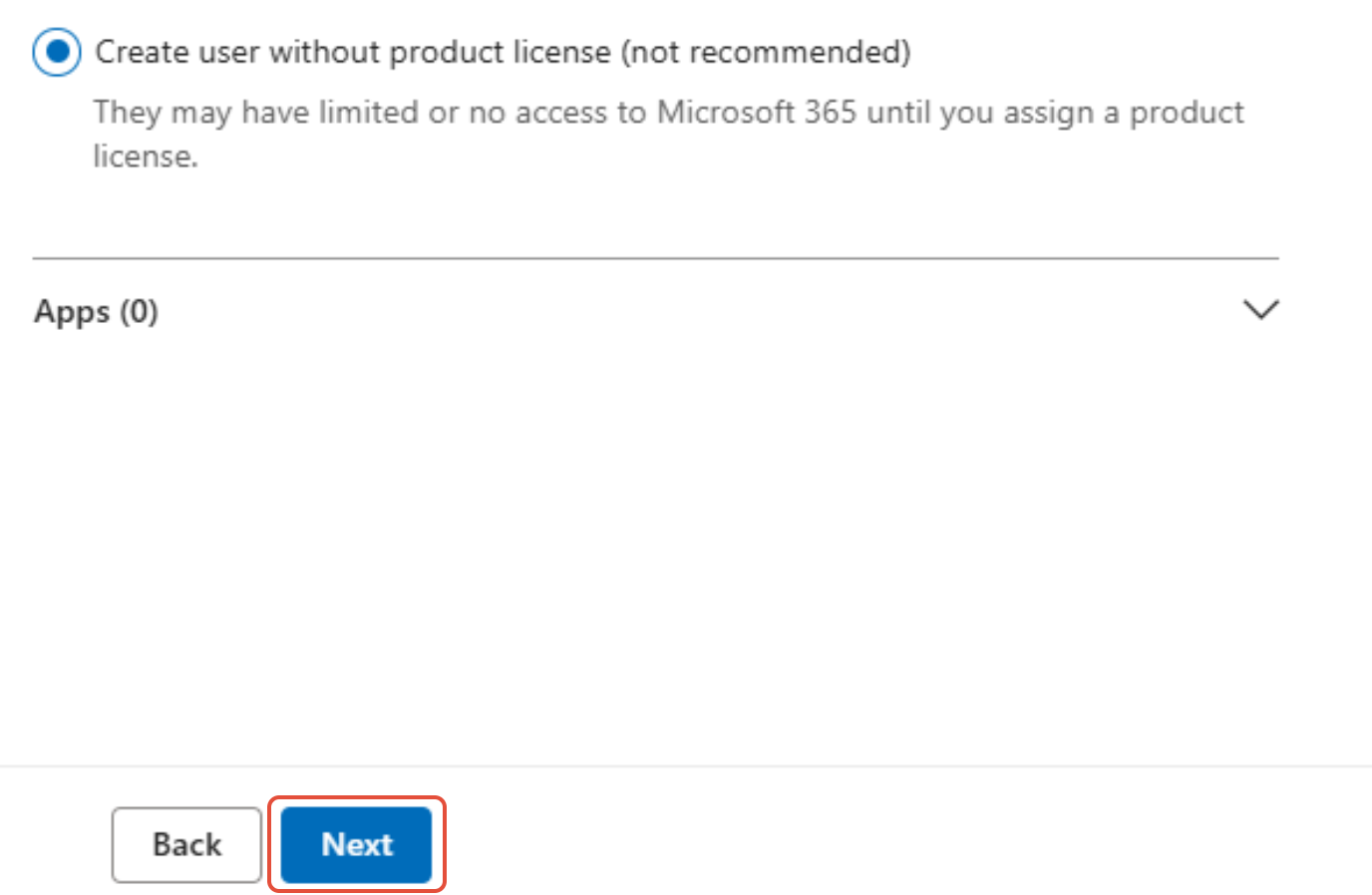
18- On the OPTIONAL SETTINGS page simply click NEXT to accept the default permissions.
19- Review the final configuration settings and click FINISH ADDING.
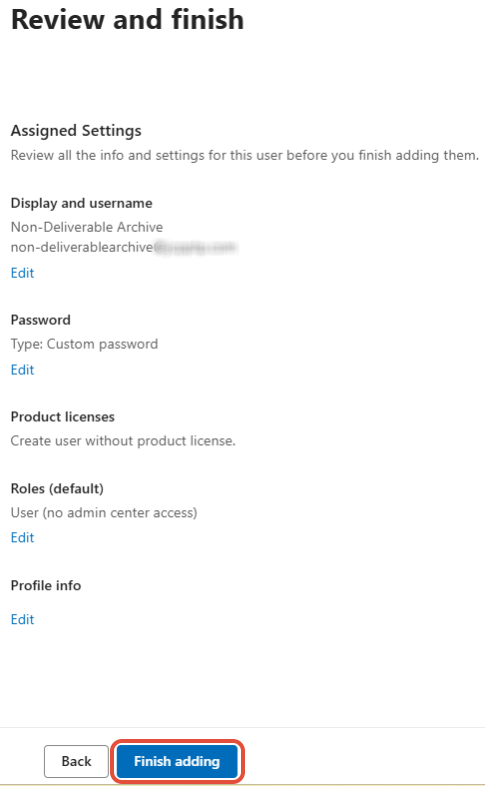
20- Finally click CLOSE on the details created on the NON-DELIVARABLE account.
THE NEXT PROCESS IS CONFIGURING THE JOURNAL RULE FOR ARCHIVING EMAILS.
21- Login to your customers O365 tenant at HTTP://PURVIEW.MICROSOFT.COM.
22- In the PURVIEW page on the left hand panel, click on SOLUTION - DATA LIFECYCLE MANAGEMENT.
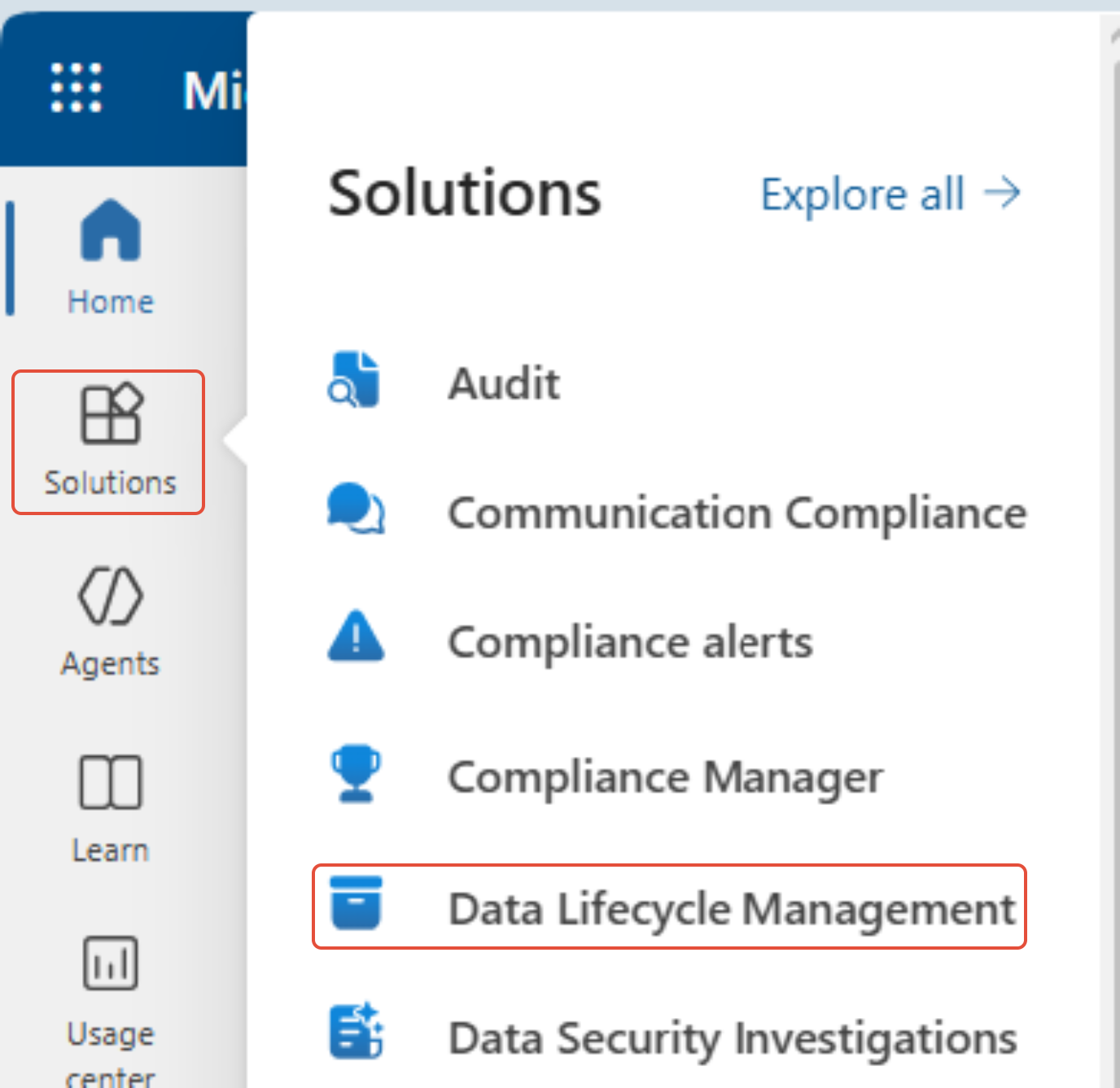
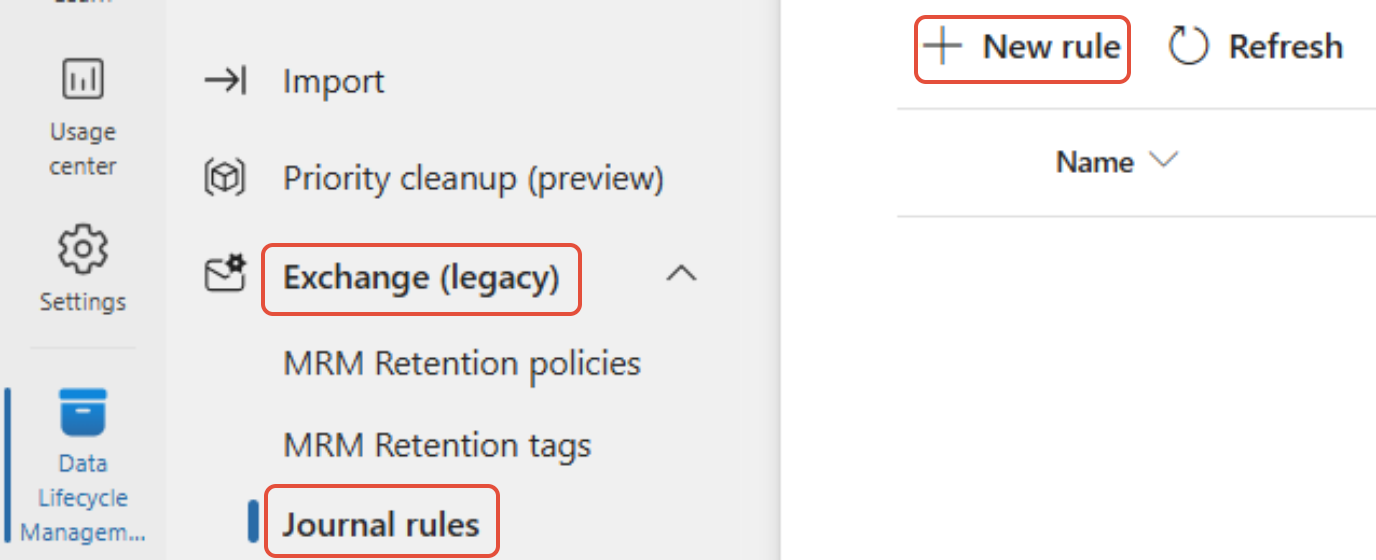
23- Next click on EXCHANGE LEGACY and select JOURNAL RULE from the drop down menu, then click NEW RULE.
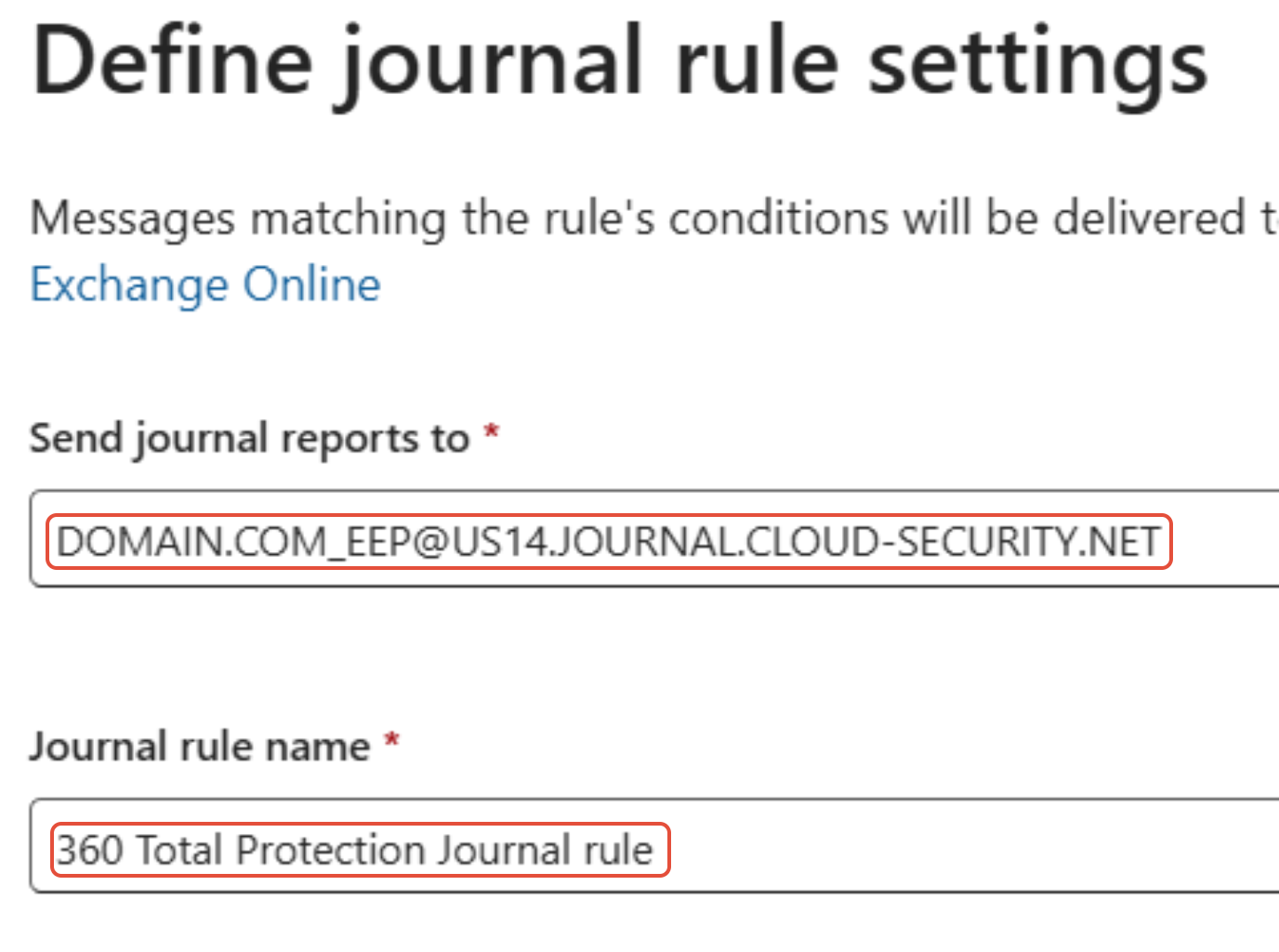
24- In the DEFINE JOURNAL RULES page, in the SEND JOURAL REPORT TO field enter the email address setup in step 11 where the DOMAIN.COM entry will be replaced with your customers domain name. Then choose a name for the journal rule as you would like.
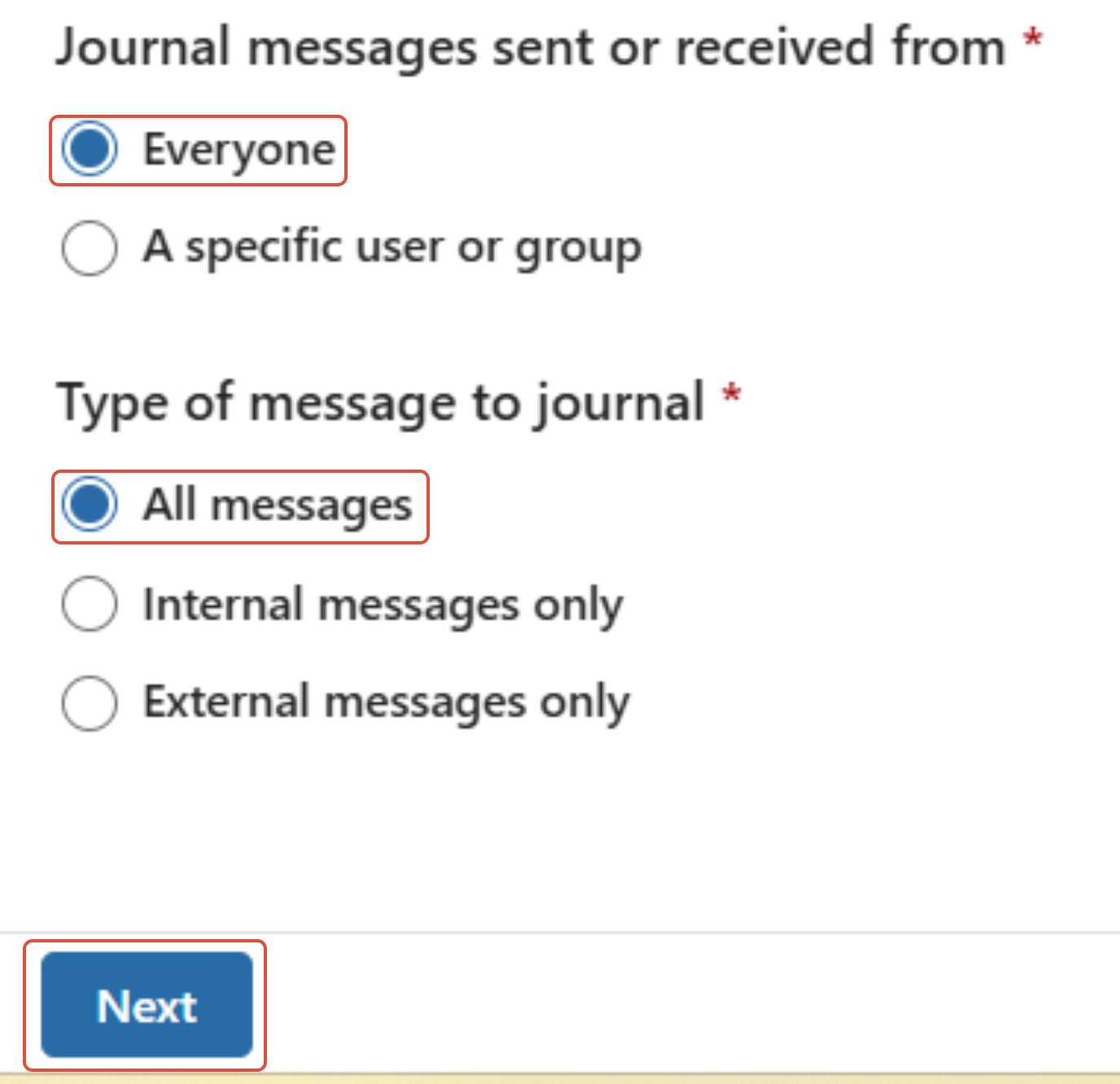
25- Next select the option EVERYONE and also ALL MESSAGES and click NEXT.
26- Review the final page and click SUBMIT then click DONE.
27- By default the Journal rule is active and you are now setup with external and internal archiving.