SCENARIO:
Now that you have setup 365 Total Protection archiving with O365 how do you know if it is working and where do you view these logs entries.
SOLUTION:
You can view the log results for archiving by simply checking the details in the EMAIL LIVE TRACKING for your clients logs.
1- Login to Total Protection at CP.PROOFPOINT.COM and in the customer scope selection make sure you are targeting your Organization Name.

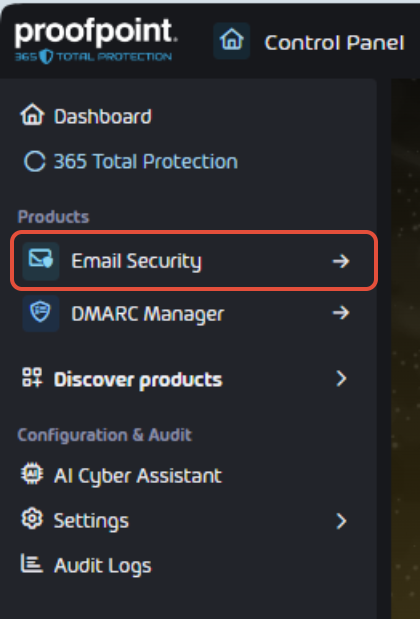
2- On the left hand panel, select EMAIL SECURITY.
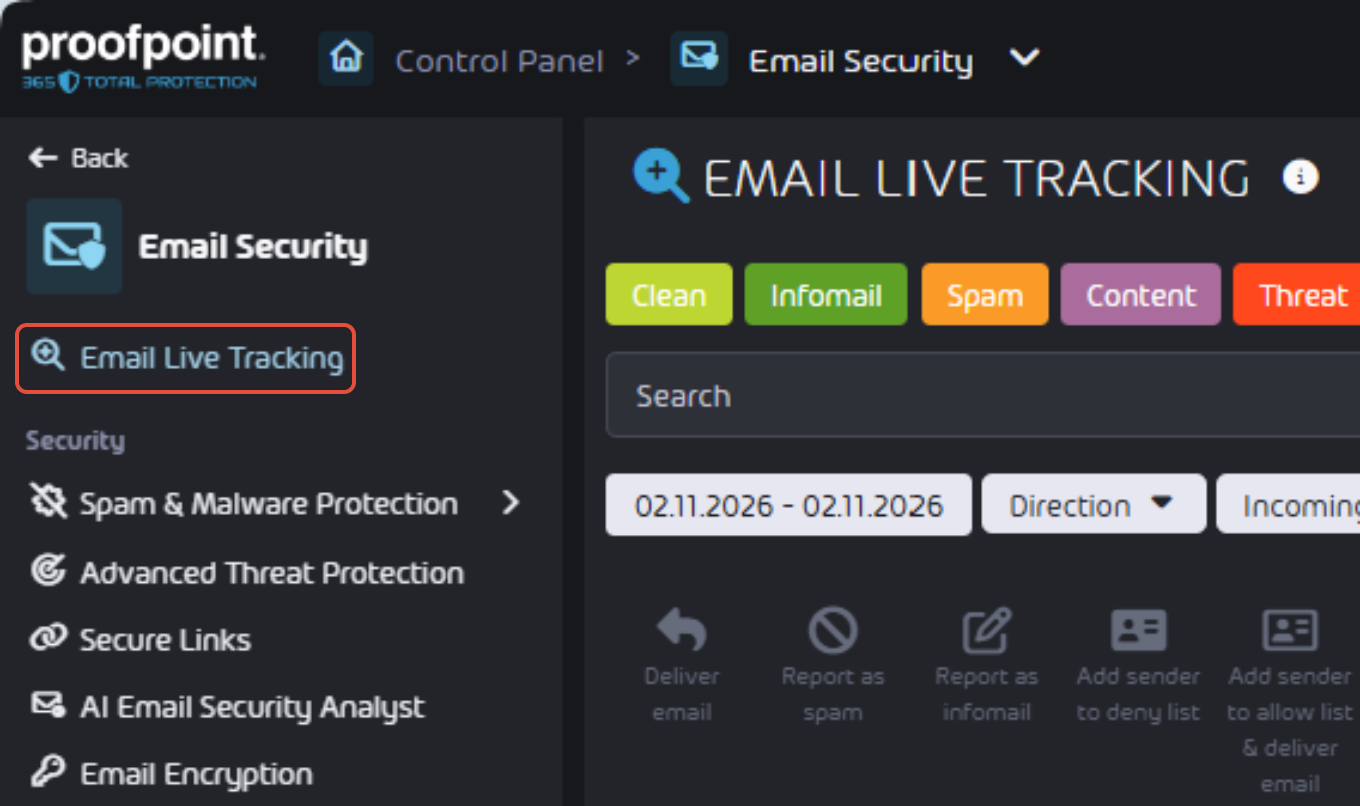
3- Next click on EMAIL LIVE TRACKING to view your customers inbound outbound emails logs. This page will also allow you to view if your emails are archived.
4- In the EMAIL LIVE TRACKING page make sure the ARCHIVE column is enabled by clicking on SETTNGS and enable ARCHIVED.
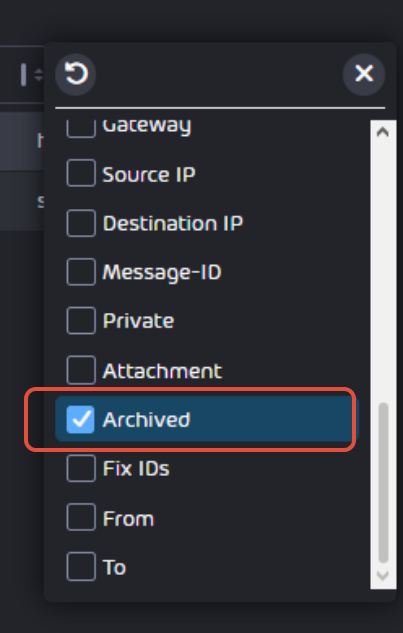
5- Once active the ARCHIVE column is now available and indicates if an email has been archived.
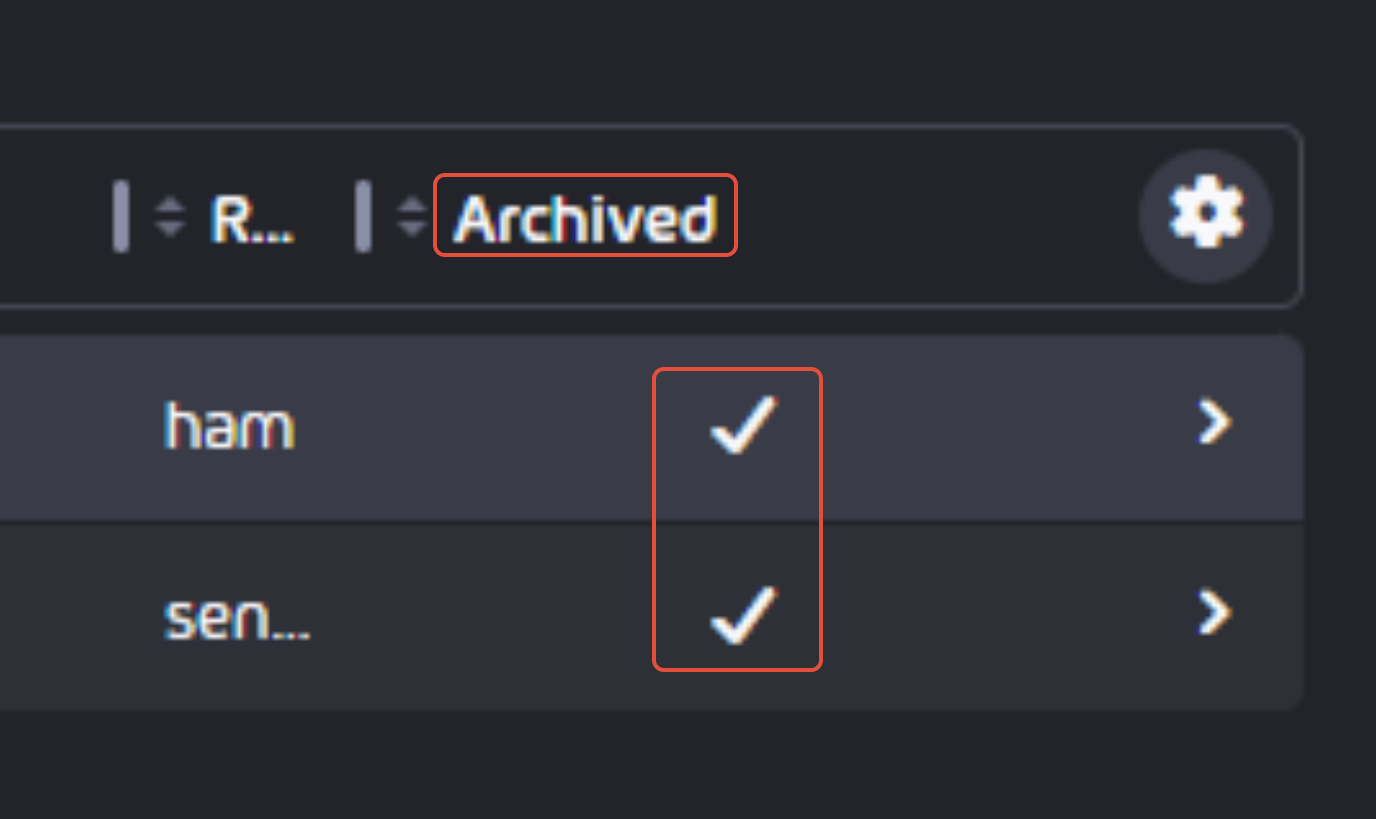
6- If you require further confirmation simply click on the right pointed arrow and from the menu select EMAIL DETAILS.
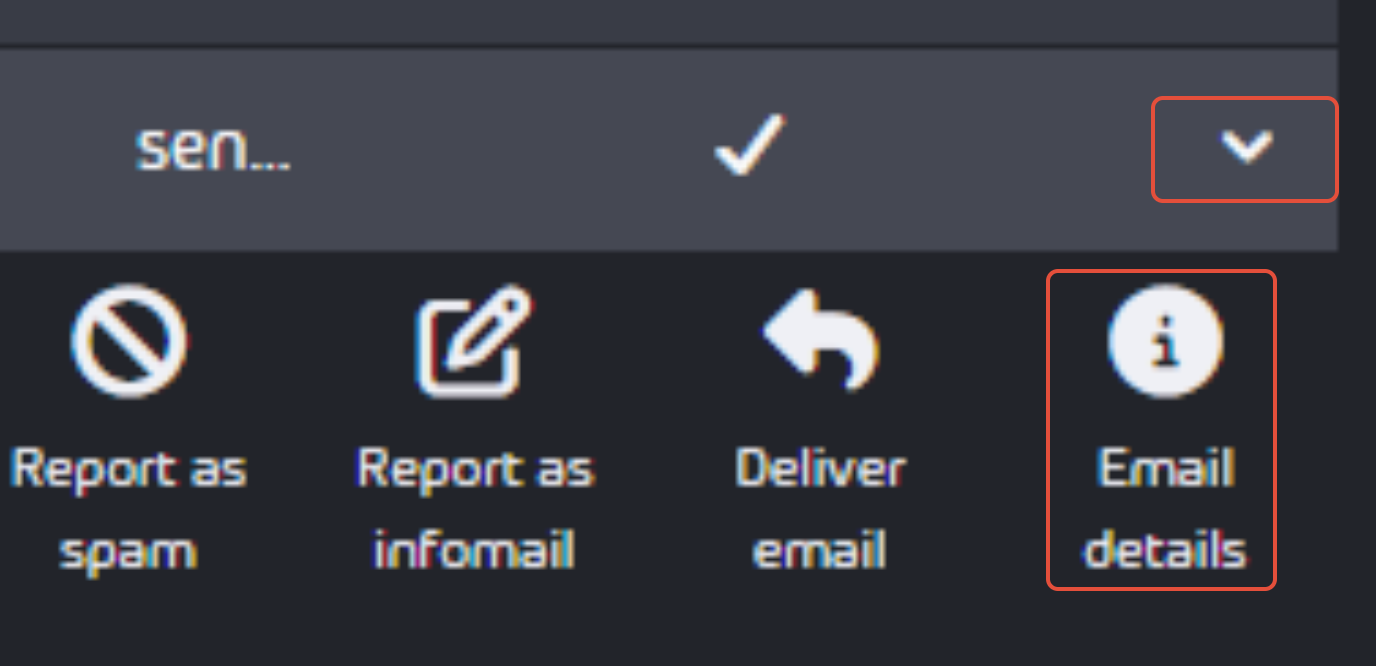
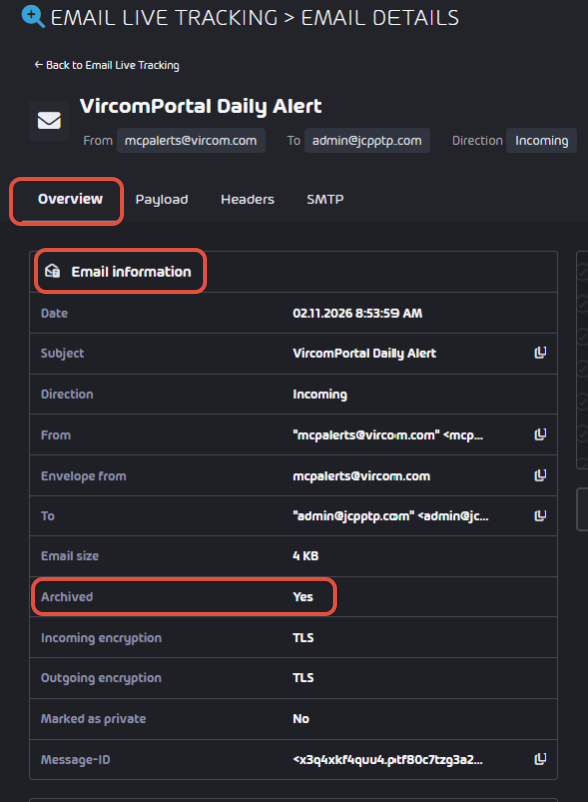
7- Now you are in the EMAIL LIVE TRACKING > EMAIL DETAILS which allows you to review headers and message details for that email. In the OVERVIEW tab under EMAIL INFORMATION, you will find an ARCHIVED header and if the email was archived the value would read YES. This confirms the email was archived.