Issue
Vircom Portal Blocked by Microsoft 365 Conditional Access During App Registration
Description
In certain environments, Microsoft 365 Conditional Access policies may prevent the Vircom Portal from successfully creating an App Registration. This typically happens when Conditional Access rules restrict access based on factors such as location, device compliance, or user roles.
Cause
The Vircom Portal requires access to Azure Active Directory (Azure AD) to create the necessary App Registration used for integration. If Conditional Access policies are not configured to permit this authentication request, the process will fail, blocking the portal from proceeding.
What is Conditional Access?
Conditional Access is a security feature within Microsoft Entra that allows organizations to enforce specific requirements when users access resources. These policies are often used to enforce:
Multifactor authentication (MFA), Device compliance checks, Access from trusted locations or networks
Conditional Access policies work like “if-then” rules:
If certain conditions are met (e.g., user signs in from an untrusted location),
Then specific controls are applied (e.g., block access or require MFA).
Microsoft-Managed Conditional Access
Microsoft has recently introduced Microsoft-Managed Conditional Access Policies, which automatically apply a baseline set of security policies across tenants to enhance protection.
Learn more here: Microsoft-Managed Conditional Access Policies for Enhanced Security - Microsoft Entra ID | Microsoft Learn
Impact on Vircom and Proofpoint
The Vircom Portal relies on App Registration to perform critical tasks such as: Azure Sync setup, Mail flow connector creation, Automated rule and policy configuration
During this process, the administrator must sign in using Microsoft 365 credentials to authorize access to the tenant. If Conditional Access policies are in place and restrict the login attempt—due to device, location, or policy requirements—the administrator will encounter an error when connecting the Vircom Portal to Microsoft 365.
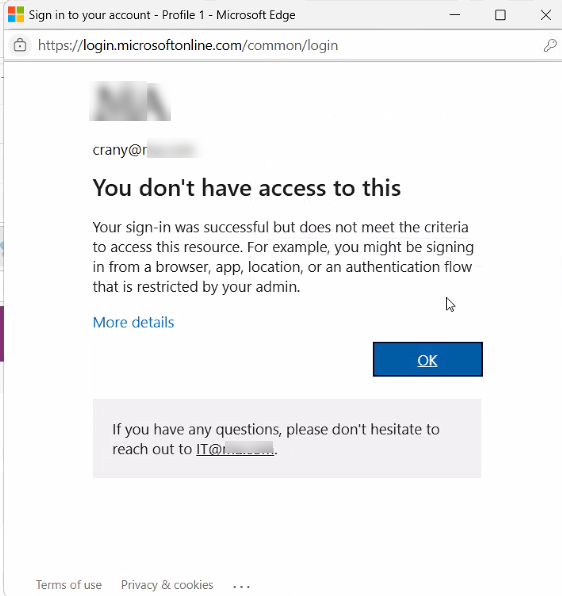
To Resolve this, we need to check which Conditional Access are preventing them on signing it.
1. Go to Entra (formerly Azure Portal) - https://entra.microsoft.com/
2. Select Conditional Access
3. Select Sign Logs -
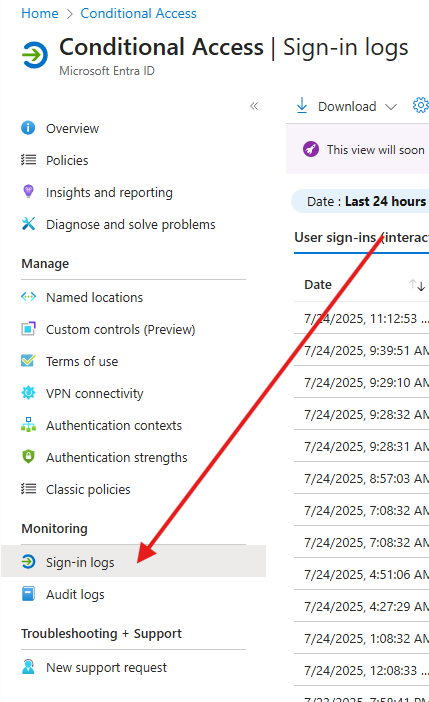
4. Select Conditional Access Tab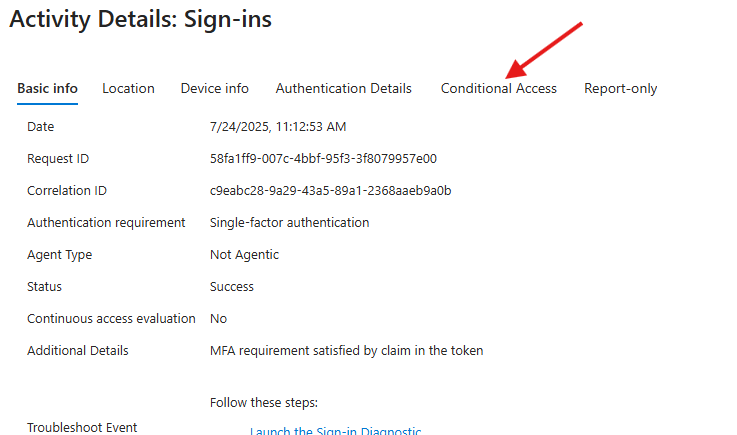
5. Check for the Failure Log when you tried to connect via Vircomportal. It will show you which conditional access is blocking the sign in.
6. Once the Conditional Access Policy is found usually it's the "Block device code flow"
You have 2 options or more. You can 1 exclude the Admin from the Policy or Turn it Off.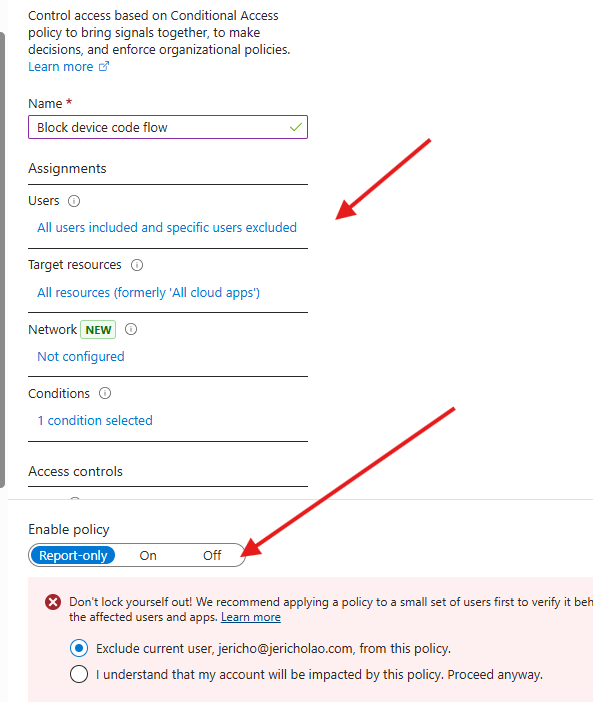
Update Aug 28 2026.
Starting July 1, 2026, all new Microsoft Entra tenants block device code flow as part of security defaults. Applications or devices that depend on device code flow won't be able to complete sign-in while security defaults are enabled.
To disable security defaults:
Sign in to the Microsoft Entra admin center as at least a Conditional Access Administrator.
Browse to Entra ID > Overview > Properties.
Select Manage security defaults.
Set Security defaults to DISABLED.
Select Save.
You Should be able to run M365 Connector and Rules via Vircomportal.